
Every caller, remembered.
Every caller and texter builds a profile — notes you leave for the AI, a summary of what it's learned, and their booking history. Here's how to work it, and how to bring in the customers you already have.
Think of Customers as a rolodex that fills itself in. Every person who calls or texts gets a page — what they usually book, notes you've left for the AI, and a summary of what it's picked up from talking with them — so you're not starting from zero on their next call.
Your customer list
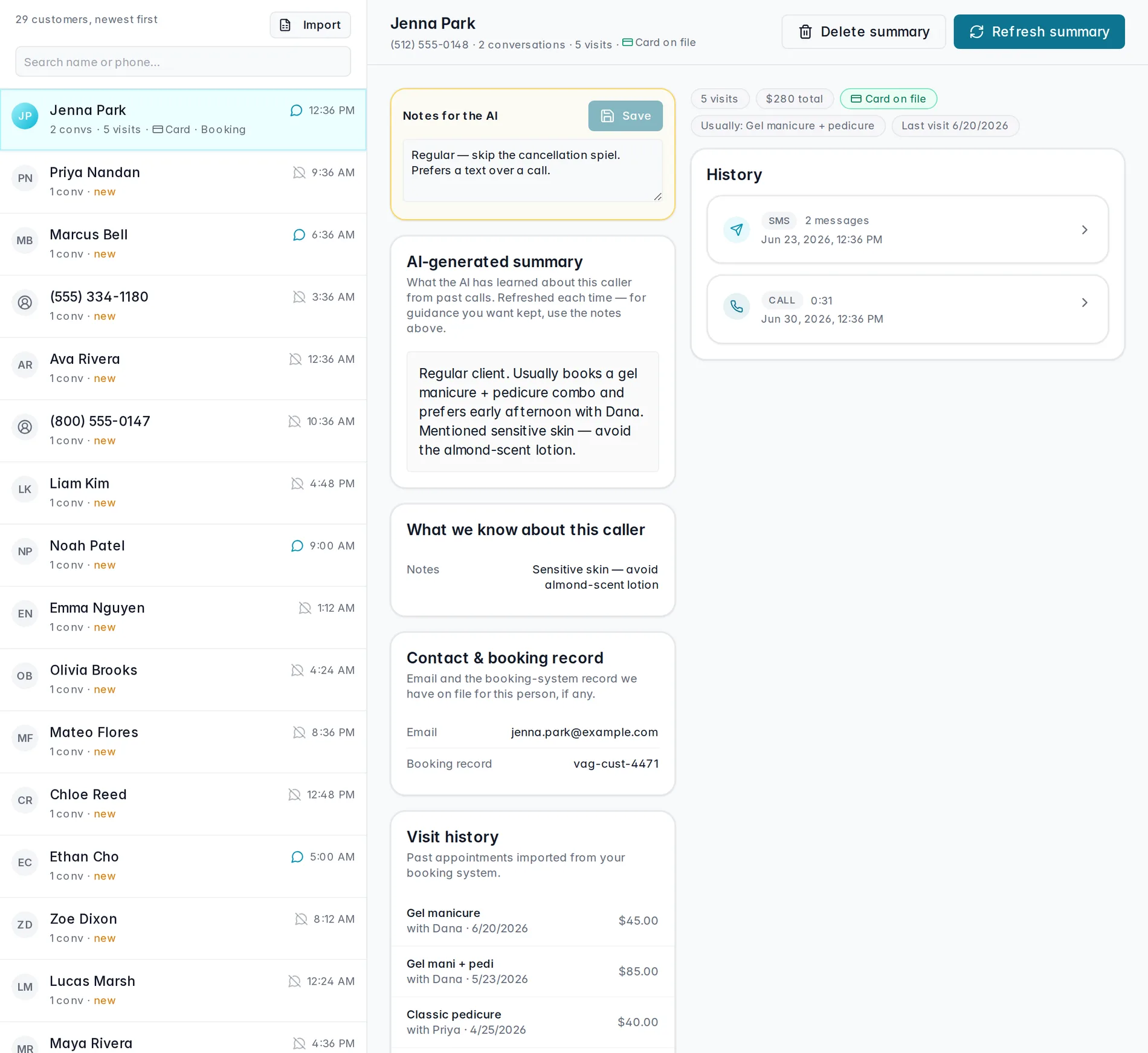
Open Customers from the left sidebar to see everyone who's called or texted you, newest activity first. Search by name or phone number to jump straight to someone. Already keeping customer records in your booking system? Hit Import to bring your history in rather than starting from scratch.
Inside a profile
Click into a profile and you'll find:
- Notes for the AI — a note you write yourself. It's caller-specific and always reaches the AI on future calls and texts, for example "Regular — skip the cancellation spiel."
- AI-generated summary — what the AI has picked up about this caller from past conversations. The first summary appears once they've talked to your AI a few times — hit Build summary to generate it, and Refresh summary any time after to bring it up to date.
- What we know about this caller — specific facts the AI has recognized, like their usual booking, a preferred day, or a card on file.
- Contact & booking record and Visit history — pulled in from your booking system, so their history is right there without switching apps.
Import your customers from a CSV
From the customer list, hit Import to open the import dialog:
- Pick your booking system.
- Choose what you're importing — Customers or Transactions.
- Not sure of the layout? Download the sample file first.
- Upload your CSV.
- Hit Preview to check it before committing, then Import.
The sample file for Customers uses these columns:
Customer ID, First Name, Last Name,
Email, Mobile Phone.
Watch it in action
A quick walkthrough of importing your customer history from a CSV:
Importing your customer history
Pick your booking system, upload your file, and preview before you commit.
Coming soonImporting pulls from your connected booking system — set that up first in Integrations. Once someone calls or texts in, that conversation shows up automatically in Conversations and gets tied to their profile.
Still stuck? We answer fast.