
Sort every call, automatically.
Tags label your conversations so you can filter them — and each tag's description teaches your AI exactly when to apply it, so calls sort themselves.
Think of Tags as the AI's own filing system. Write a plain-English description once — "apply this when the caller wants to book" — and the AI applies the tag itself on every matching call or text from then on.
How tags work
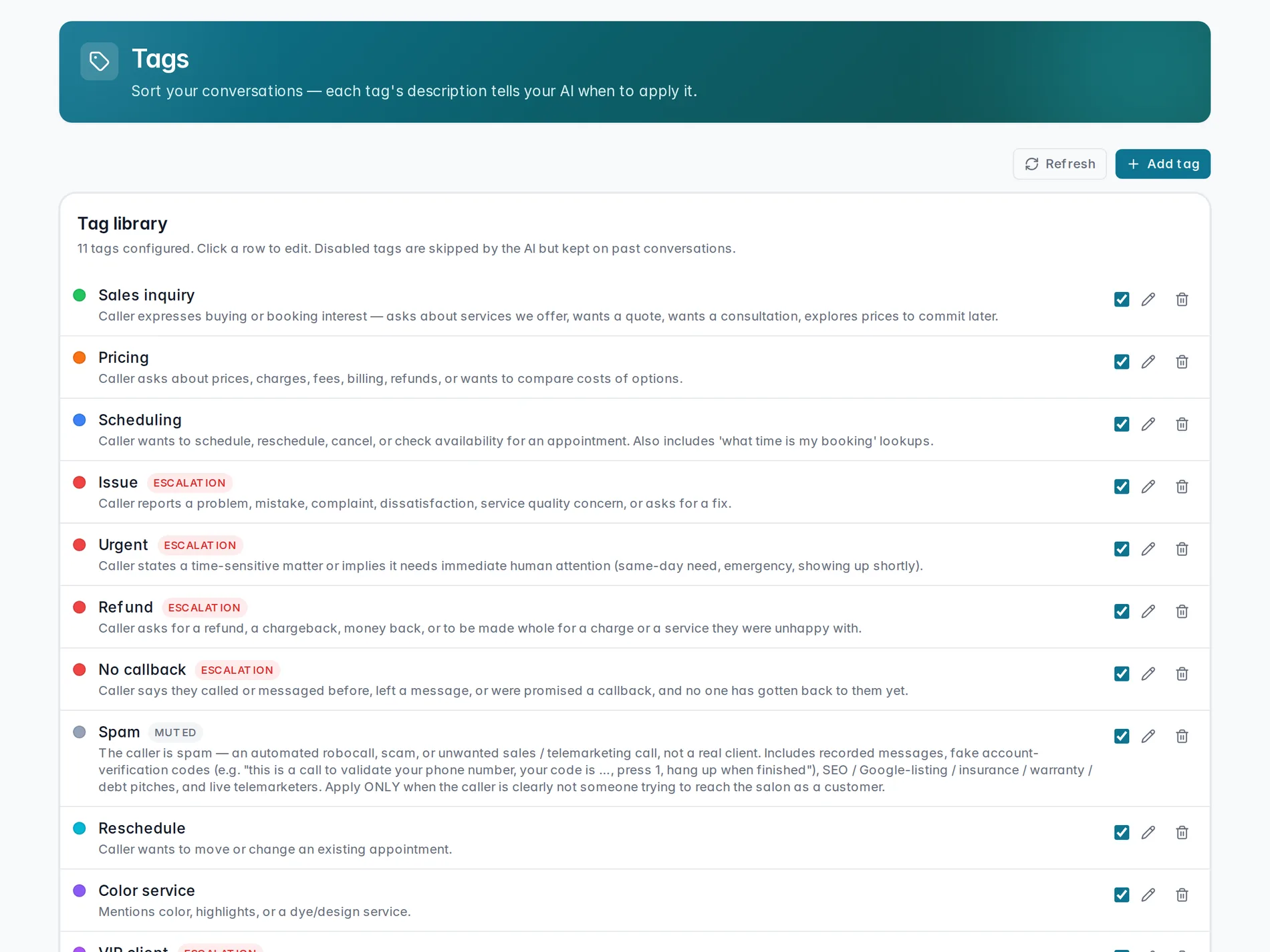
Every tag has a description your AI reads and follows while it's on a call or text, deciding on its own whether the tag applies. Press Add tag to create a new one.
Name, color, description
A tag is just three things: a name, a color swatch so it's easy to spot in the conversation list, and a short description — a plain sentence telling your AI when to use it.
Normal, escalate, or mute
Every tag also has a disposition, which decides what happens the moment it's applied:
- Normal — tag the conversation for reference only. No flag, no alert.
- Escalate — flag the call for follow-up and alert your mapped recipients.
- Mute — silence the call: no flag, no alert, no summary. Use it for spam or nuisance calls.
Try it before you rely on it
Editing a tag shows a Test this tag box. Paste something a caller might say — like "Hi, can I move my appointment to next Tuesday?" — hit Test, and the AI tells you Tag would apply or Tag would NOT apply, with a short reason why. It's a quick way to sanity-check a description before you trust it on real calls.
Creating a tag the AI applies for you
Write a description once, test it, and watch it apply itself on real calls.
Coming soonSee your tags at work in Conversations, and route escalation tags to the right person in Owner alerts.
Still stuck? We answer fast.